Whatever you edit with, captions come down to two jobs: getting every word right, and making the words look good. Here's an easy way to do both on a Mac, and step-by-step guides for DaVinci Resolve, Final Cut Pro, Premiere Pro, iMovie and CapCut.
The easy way: caption the video in Easy Caption Pro
We make Easy Caption Pro, a Mac app built for one thing: captions. It turns speech into text on your Mac, in 99 languages and without an internet connection, then lets you fix any word in seconds and style the captions with 280+ ready-made looks. It needs macOS 14 or later.
- Drop your video onto Easy Caption Pro, or choose File › Open File….
- Set the Language that's spoken, or choose Auto-detect, and click Transcribe All.
- Fix any word in the Script Editor, on the timeline, or right on the video.
- Choose a look in Presets, or make your own in Style, Animation and Filters.
- In the Export menu, choose Export with Captions.
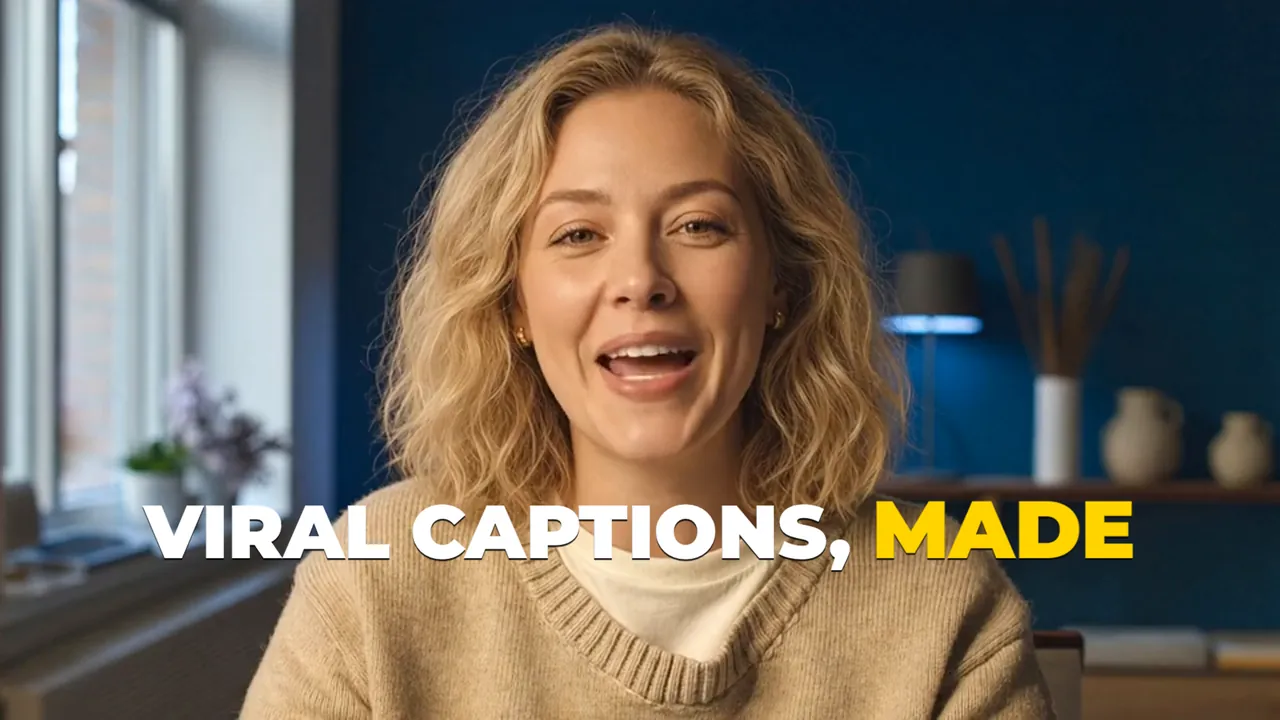
That's a finished video with the captions burned in, ready to post. For TikTok, Instagram or YouTube Shorts, turn on Safe Zones while you edit: it shows the app's buttons over your video, so you can keep the captions clear of them.
Captions in your editor
Already editing in another app? Each guide shows that app's own captions, step by step, and how to bring in captions from Easy Caption Pro when its own fall short.
Burned-in captions or an overlay?
Easy Caption Pro can give you your captions in two ways:
- Export with Captions burns the captions into your video. Use it when the video is finished and you're ready to post.
- Export Captions Only makes a video of just the captions, the same length as your clip and with its sound, to lay over your video in another editor. Choose Transparent (ProRes 4444) for a see-through background, or Green Screen or Blue Screen for editors that can't read transparency and need to key the colour out instead.
Both are video files, and the captions are part of the picture. If a platform asks you for a separate subtitle file, export that from your editor.
TikTok-style, word-by-word captions
The captions you see on TikTok and Reels are big, bold and short: a few words at a time, with each word lighting up or popping in as it's said, near the middle of the screen. Here's how to get them in Easy Caption Pro:
- Choose a look from Presets. Groups such as Karaoke and Word Boxes colour or box each word as it's spoken, Highlighters draw a marker stroke behind the words, and the 3D groups give you solid, lit letters.
- For one word at a time, set Max words per segment to 1 in the transcription settings before you transcribe.
- Turn on Safe Zones and keep the captions clear of the app's buttons and text.
Of the editors below, Final Cut Pro and DaVinci Resolve Studio can highlight words as they're spoken, Premiere can show one word at a time, and CapCut has animated caption templates, some of them Pro.
What each editor can do on its own
| App | Captions from speech | Words animated as they're said | Captions overlay from Easy Caption Pro |
|---|---|---|---|
| DaVinci Resolve (free) | No | No | Transparent |
| DaVinci Resolve Studio | Yes, 14 languages, about 45 more with a download | Yes | Transparent |
| Final Cut Pro | Yes, U.S. English only, on Apple silicon | Yes, Highlight | Transparent |
| Premiere Pro | Yes, 18 languages | One word at a time, without a highlight | Transparent |
| iMovie | No | No | Transparent as a cutaway, or green screen |
| CapCut | Yes, online; a Pro feature in many regions | Some templates, some of them Pro | Transparent |
| Easy Caption Pro | Yes, 99 languages, on your Mac | Yes, with word-by-word looks | Makes it |
FAQ
- Can I add captions to a video on my Mac without a video editor?
- Yes. Open the video in Easy Caption Pro, transcribe it, fix and style the captions, and click Export with Captions. You don't need any other app.
- Do I need an internet connection?
- Not for Easy Caption Pro: its transcription models are built into the app. CapCut makes its captions online. Final Cut Pro downloads its language model the first time you use it, and Premiere downloads each language other than English once.
- Which languages can Easy Caption Pro transcribe?
- 99 languages, or it detects the spoken language for you. The editors' own captions cover fewer: see the table above.
- How accurate are automatic captions?
- Clear speech with little background noise comes out best in any app. In Easy Caption Pro, the Large (best quality) model is the most accurate, and you can retranscribe just the part that needs it.
Viral captions. Made easy.
Transcribe on your Mac, fix any word in seconds and style animated captions, then export a finished video or a transparent overlay for your editor.
Get Easy Caption Pro