CapCut for Mac has auto captions, but in many regions they're now a Pro feature or come with only a few free uses, and they need an internet connection. Here's how to use them, how to add captions by hand, and how to bring in captions made on your own Mac with Easy Caption Pro.
Auto captions in CapCut for Mac
- Open your project and click the Captions tab.
- Choose Auto captions.
- Set the Spoken language, or choose Auto detect.
- Click Generate. CapCut processes the audio online, so stay connected while it works. The captions appear on their own track above your video.
- Play the video through and click any caption with a mistake to correct its text.
CapCut's help says auto captions support more than 30 languages.
Which caption features need CapCut Pro?
CapCut has moved several features behind its Pro subscription, and its own help pages describe Pro as including auto captions. What you'll actually see depends on your region and account:
- Auto captions: in many regions they need Pro, or you get a few free uses and then a "Join Pro to use auto captions" message.
- Removing filler words from captions is a Pro feature.
- Templates and text animations: some are Pro. If your project uses even one Pro element, CapCut can lock the export until you subscribe.
- Exporting: one CapCut help page says 4K, 60 fps and "No Watermark" can be locked for non-Pro users on desktop, while others say exports are normally free of watermarks.
Add captions by hand
- In the Captions tab, choose to enter captions manually.
- Type the first line, then drag the caption's ends in the timeline so it lasts as long as the line.
- Repeat for every line, and use the panel on the right to set the font, size, colour and position. You can apply a style to every caption at once.
If you have a subtitle file, choose Import captions. CapCut 9.5.0 reads SRT, LRC and ASS files.
Word-by-word and animated captions
CapCut has caption templates, including animated ones, and it can highlight keywords in your captions automatically. Some templates and the text animation library are Pro, so check for a Pro badge before you build a whole video around one.
If you want words that light up or pop in as they're spoken, without a Pro badge in sight, the next method gives you that.
Captions made on your Mac with Easy Caption Pro
We make Easy Caption Pro, a Mac app that transcribes on your Mac, in 99 languages, with no internet connection, no queue and no free-use counter. You fix any word, choose from 280+ ready-made looks, including word-by-word highlights and one word at a time, and bring the result into CapCut as a clip that sits on top of your video.
Make the captions
- Open your clip in Easy Caption Pro and click Transcribe All.
- Fix any word in the Script Editor or on the timeline, and choose a look in Presets.
- In the Export menu, set Resolution to Match Source.
- Choose Export Captions Only › Transparent (ProRes 4444).
Put them on your video in CapCut
- Click Media, then Import, and import the captions file.
- With Auto snapping on, as it is to begin with, drag the captions file into the space above the main track, so it starts on the first frame of your clip. Don't drop it on the main track itself, which would put it in line with your clips instead of over them.
- Click the speaker button at the left of the captions' track (Mute track). The file carries a copy of your clip's sound, which would otherwise play twice.
- Play it back. The captions sit over your video, with their background clear.
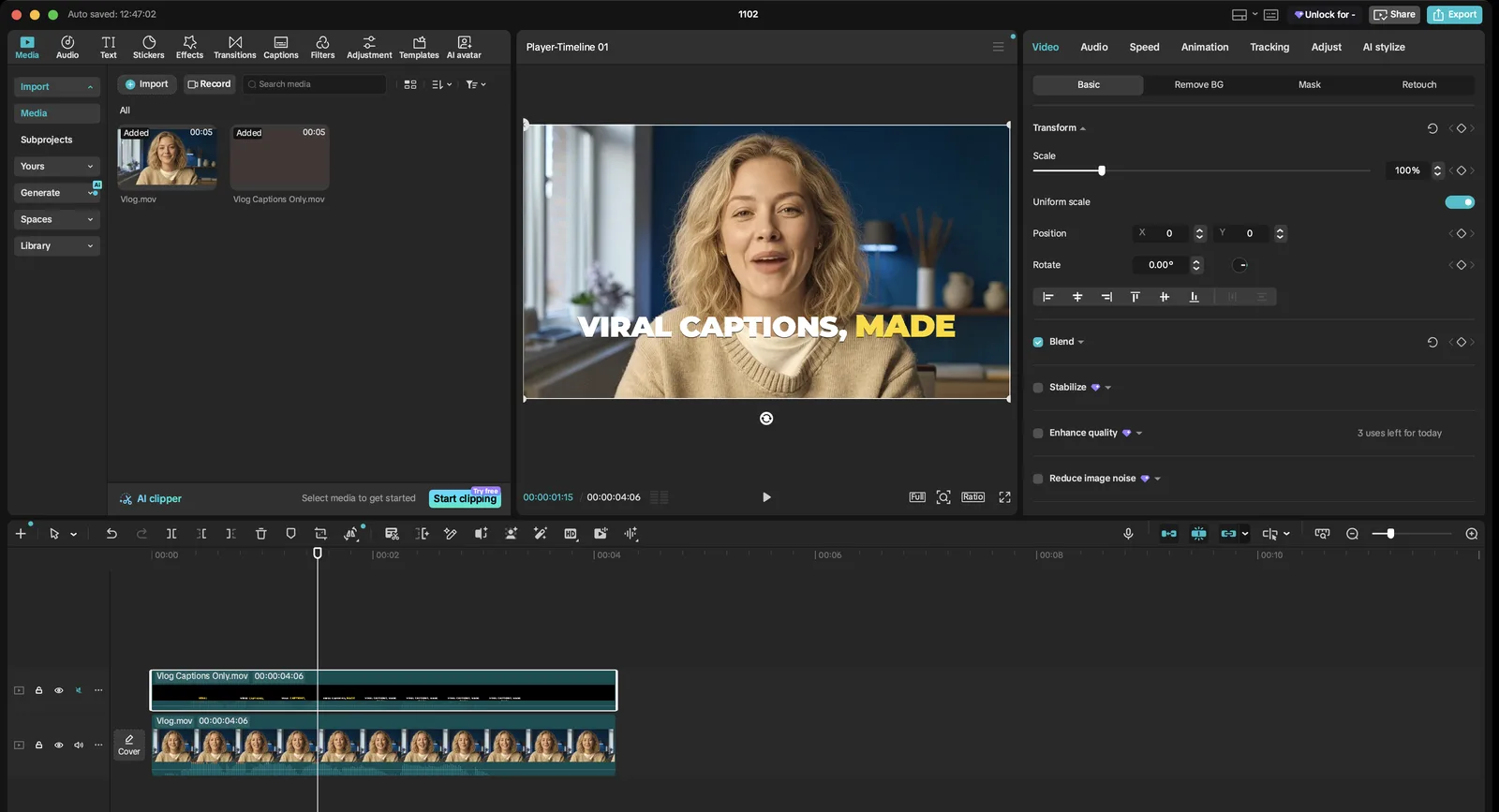
We tested this in CapCut 9.5.0, which keeps the captions' transparency. If yours shows them on a black background, use a green screen instead.
With a green screen
- In Easy Caption Pro, set Format to ProRes 422 for the cleanest edges, then choose Export Captions Only › Green Screen. If your captions use green, choose Blue Screen instead.
- Import the file into CapCut and place it above the main track, as above.
- Select it, and in the panel on the right choose Video › Remove BG › Chroma key.
- Click the Color picker and click the green in the preview.
- Raise Intensity until the green is gone, and adjust Shadow to clean up the edges.
- Mute its track, as above.
Keep the captions in sync while you edit
With Main track magnet on, CapCut closes gaps on the main track when you trim or delete, but clips above it stay where they are unless Linkage includes overlays. Turn on Linkage, or select your clip and the captions and choose Create compound clip. If you trim the start of your clip, trim the start of the captions by the same amount.
Or caption the finished video
The simplest route is to finish your edit first. Click Export in CapCut, at the same resolution and frame rate as your footage. Delete any CapCut ending clip from the timeline first, or it ends up under your captions. Then open the export in Easy Caption Pro, caption it, and click Export with Captions for a finished video. Safe Zones in Easy Caption Pro shows TikTok's, Instagram's and YouTube's buttons over your video, so you can keep the captions clear of them.
Troubleshooting
- Auto captions are stuck or do nothing
- CapCut makes captions online, and its help suggests checking your internet connection and restarting the app. Easy Caption Pro transcribes on your Mac, so it doesn't depend on a connection.
- "Join Pro to use auto captions"
- Auto captions are a Pro feature in your region, or your free uses have run out.
- The captions are on a black background
- Use the green screen method above.
- I hear an echo
- Both clips are playing the same sound. Mute the captions' track.
- The captions drift after I edit
- The main track moved but the captions didn't. Turn on Linkage for overlays, or make the two clips a compound clip.
FAQ
- Are CapCut's auto captions free?
- Not everywhere any more. In many regions they need CapCut Pro or come with a limited number of free uses, and the rules change from time to time.
- Do CapCut's captions work offline?
- No. Auto captions are made online. Easy Caption Pro makes captions on your Mac without a connection.
- Can I make captions appear one word at a time?
- CapCut's caption templates and keyword highlights get you part of the way, and some of its text animations are Pro. Easy Caption Pro's looks include one word at a time and word-by-word highlights, which you can bring into CapCut as an overlay.
- Will a transparent overlay work in CapCut?
- Check with a few seconds of playback. If the background isn't clear, use the green screen method, which doesn't rely on transparency.
Viral captions. Made easy.
Transcribe on your Mac, fix any word in seconds and style animated captions, then export a finished video or a transparent overlay for your editor.
Get Easy Caption Pro