iMovie on the Mac has no captions feature, and it can't turn speech into text. You can type each line as a title, or let Easy Caption Pro transcribe the whole video in minutes and bring the captions back into iMovie.
Can iMovie add captions automatically?
No. iMovie has no captions or subtitles feature and no transcription, and it can't import a subtitle file. The only way to put words on screen is with Titles, which you type and time yourself, one at a time.
So you have two options: add titles by hand, which suits a short clip, or caption the video automatically in Easy Caption Pro, which suits anything longer.
Add captions by hand with titles
- Click Titles above the browser.
- Drag a title above the clip, to where the first line is spoken.
- Type the line in the viewer. Use the controls above the viewer to change the font, colour, size, style and alignment.
- Drag the ends of the title in the timeline so it lasts as long as the line, or type a time in the Duration field.
- Repeat for every line.
A few things to know:
- Some title styles are animated and some won't let you change the font. Choose a plain one if you want captions that simply switch from line to line.
- Nothing is matched to the speech, so every line needs timing by eye and ear.
- A five-minute talking video has well over a hundred lines. That's an evening of typing and dragging.
Automatic captions for an iMovie video
We make Easy Caption Pro to do that evening's work in minutes. It transcribes on your Mac, in 99 languages and without an internet connection, then lets you fix any word and style the captions. The simplest way to use it with iMovie is to finish your edit first:
- In iMovie, select your movie and choose File › Share › File. Choose the Resolution, click Next, name the file and click Save.
- Open the exported movie in Easy Caption Pro and click Transcribe All.
- Correct any word in the Script Editor or on the timeline, then choose a look in Presets.
- Click Export with Captions.
That's it: a finished video with the captions burned in, ready to upload. If it's for TikTok, Instagram or YouTube Shorts, Safe Zones in Easy Caption Pro shows each app's buttons over your video, so you can keep the captions clear of them.
Or add the captions to your iMovie project
If you'd rather keep working in iMovie, export only the captions from Easy Caption Pro and lay them over your clip.
With a transparent overlay
- In Easy Caption Pro, open the Export menu, set Resolution to Match Source, and choose Export Captions Only › Transparent (ProRes 4444).
- In iMovie, click Import in the toolbar and import the captions file, or drag it from the Finder onto an event.
- Put the playhead at the start of the clip you captioned, select the captions file in the browser and press Q. You can also drag it above the clip and line up its start with the clip's start.
- If the overlay controls aren't showing, click the Video Overlay Settings button and make sure the pop-up menu on the left says Cutaway. Picture in Picture would shrink the captions into a small window.
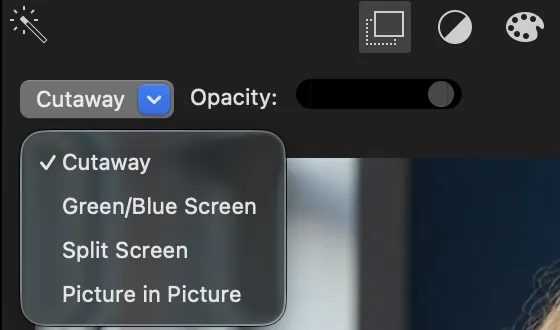
- Select the captions clip, click the Volume button and click Mute (Shift-Command-M). The file carries a copy of the clip's sound, which would otherwise play twice.
The captions file shows a black thumbnail in the browser; that's normal. Placed above your clip as a cutaway, its background is clear.
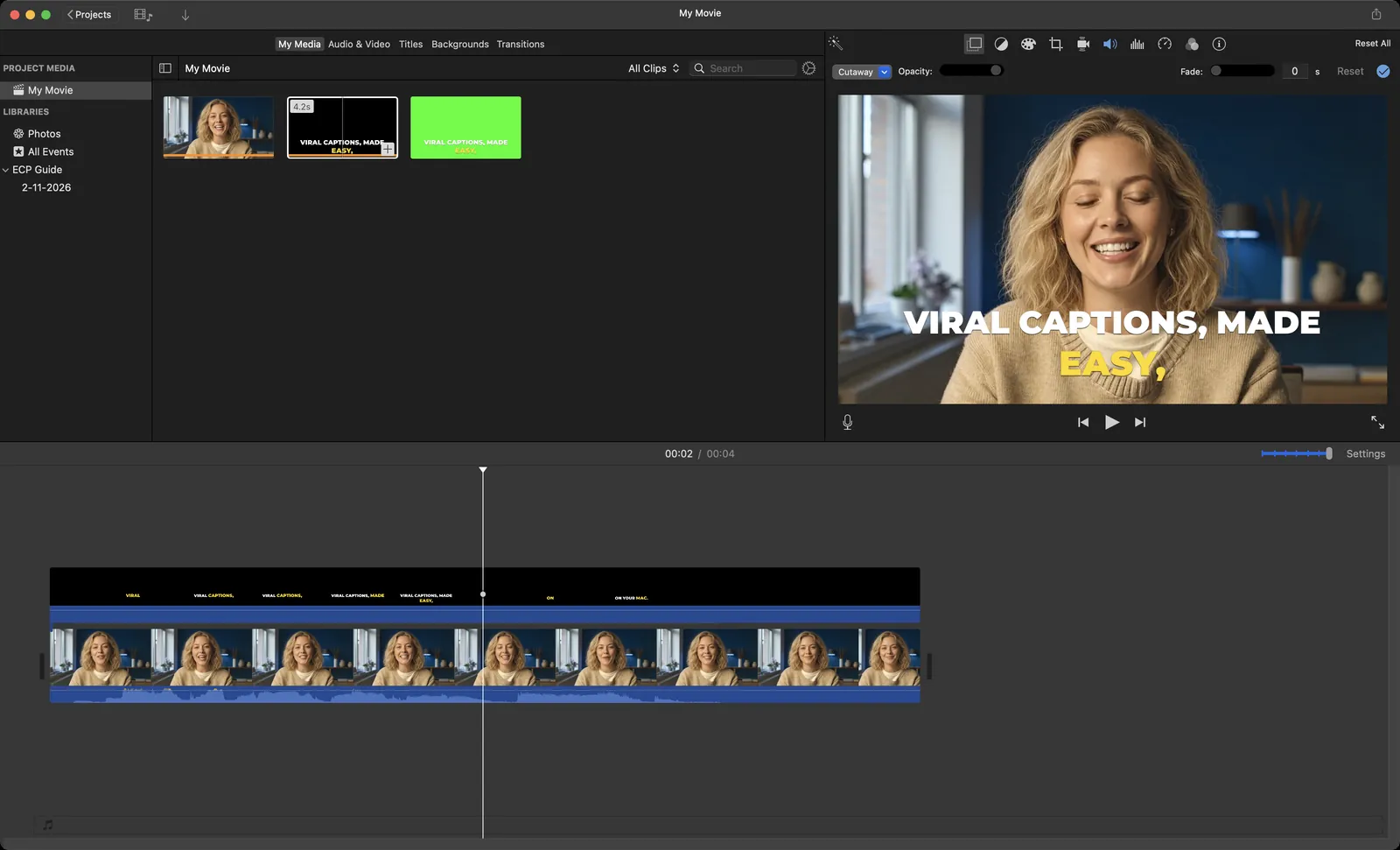
With a green or blue screen
If the captions ever show up in a black box, use a green screen instead:
- In Easy Caption Pro, choose Export Captions Only › Green Screen. If your captions use green, choose Blue Screen.
- Drag the captions file above your clip in iMovie, lined up with the clip's start.
- Put the playhead on a frame that's mostly background. iMovie removes the colour it finds most of at the playhead.
- Click Video Overlay Settings, choose Green/Blue Screen from the pop-up menu on the left, and click Apply.
- If edges look rough, adjust the Softness slider. Set Softness before using Clean-up, because changing it afterwards resets the clean-up.
- Mute the captions clip, as above.
Soft glows, shadows and motion blur never key perfectly, so the transparent overlay looks best when it works.
Troubleshooting
- The captions are in a black box
- Use the green or blue screen method above.
- The captions are small and in a corner
- The overlay is set to Picture in Picture. Click Video Overlay Settings and choose Cutaway.
- I hear an echo
- Both clips are playing the same sound. Mute the captions clip.
- The captions are early or late
- The captions file starts at the first frame of the clip you captioned. If you trimmed the start of that clip in iMovie, drag the start of the captions clip in by the same amount, or caption the finished movie instead.
FAQ
- Can iMovie import SRT subtitles?
- No. iMovie has no captions feature, so there's nowhere for a subtitle file to go. To get captions into an iMovie video, burn them into the picture.
- Can I make captions appear word by word in iMovie?
- Not with iMovie's titles. Easy Caption Pro has word-by-word looks among its 280+ ready-made styles, and you can bring them into iMovie with either method above.
- Do the captions work in my language?
- Easy Caption Pro transcribes 99 languages on your Mac. Choose the language before transcribing, or let it detect the language for you.
Viral captions. Made easy.
Transcribe on your Mac, fix any word in seconds and style animated captions, then export a finished video or a transparent overlay for your editor.
Get Easy Caption Pro