
Get this look in Easy Caption Pro
Pick a Glass preset and every caption in your video has it. No plugins and no keyframes.
The Apple-like liquid glass effect makes a caption look like a pane of real glass. The video behind it bends at the edges, blurs a little and catches the light, and all of it moves as the video moves. Everything in this video was made in Easy Caption Pro.
The easy way: pick a Glass preset
- Open your video in Easy Caption Pro and click Transcribe All.
- Open Presets and find the Glass group. Typing "glass" in Search presets shows the whole group.
- Click a preset to apply it. Move the caption by dragging it in the viewer.
- In the Export menu, choose Export with Captions.
Here are the main presets, rendered by the app on the same clip:
Window SeatLight frost and a sharp rim, a good place to start. FishbowlA strong lens that really bends the picture. Squeaky CleanNo frost, so you see straight through. Steamed UpHeavy frost that calms a busy background. SunniesGlass with a blue tint. Limo TintDark smoked glass that keeps white words readable. SpyglassA pill of glass that glides from word to word. Blown GlassThe letters themselves are glass, in 3D. - Get them all in Easy Caption Pro
Put glass on any caption
Already have a look you like? Three things can be glass, and they share one set of settings.
- A caption's box: in Style, open Box & Outline, choose a Box and set its Fill to Glass.
- The letters: in Style, switch to 3D and choose Glass in 3D Look. Use a heavy font at a large Size, because the bend lives in the letters' strokes.
- The spoken word's box: in Animation, open Spoken Word, then Box, and turn on Glass.
What each setting does
Pick a Look to start from: Clear, Regular, Frosted, Tinted or Lens. Then adjust it:
| Setting | What it does |
|---|---|
| Refraction | How strongly the edge bends what's behind the glass |
| Frost | Blurs what's behind the glass |
| Edge width | How far in from the edge the bend reaches |
| Edge light | The light caught on the glass's edge |
| Tint and Tint strength | The glass's colour, and how strongly it shows |
Fine-tune holds the rest of the lens, colour, light and shadow.
Keep the words readable
Glass shows whatever's behind it, so white words can fade into bright video. You don't need to change their colour. Darken the glass instead: choose a dark Tint and raise Tint strength until the words stand out. More Frost also helps over a busy background.
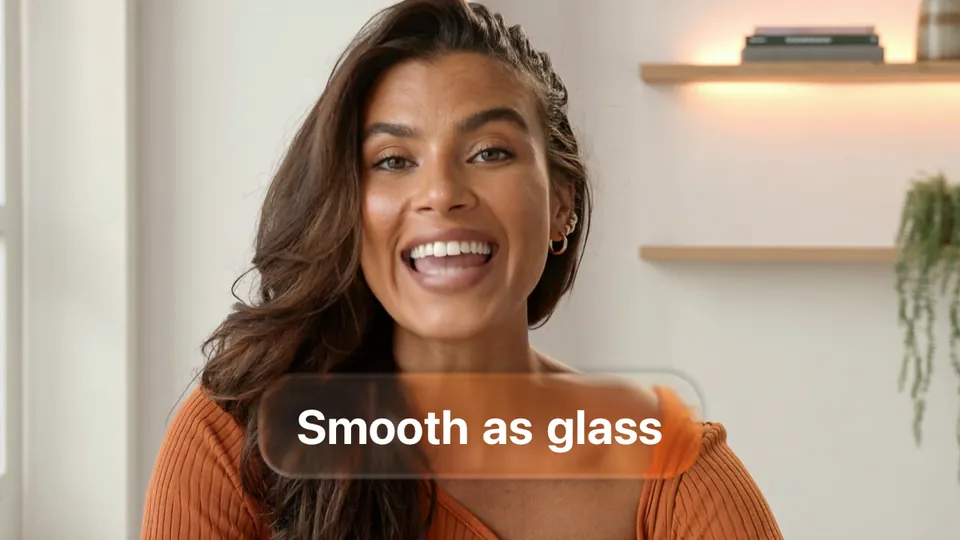
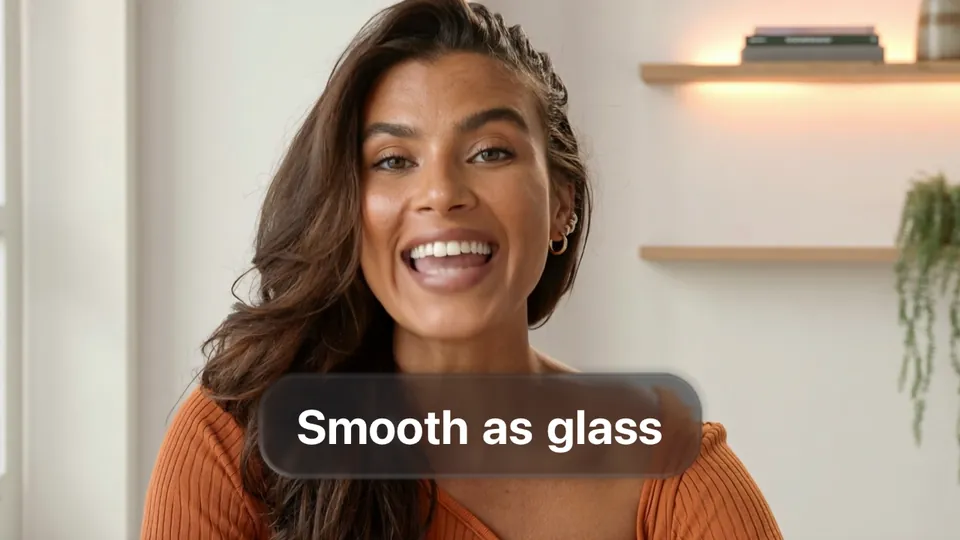
Glass also needs something to bend, so it shows best on footage with some detail and movement, not over a flat colour.
Export your glass captions
Export with Captions burns the captions and glass into your video, ready to post. Export Captions Only bakes the glass in with your video showing through, so it only lines up over that same video, in the same place and at the same timing. To lay captions over your video in another app, see our guides for DaVinci Resolve, Final Cut Pro, Premiere Pro, iMovie and CapCut.
What is the liquid glass effect?
People use "liquid glass" for the see-through, light-bending look that Apple introduced as Liquid Glass in iOS 26 and macOS Tahoe. Here, that Apple-style look goes on video captions and text. On video, the edge of the glass works like a lens, so the picture curves round the rim, and the rim picks up what's just outside it. A thin line of light gives the glass its shape, and all of it is worked out again for every frame. A plain blurred box can't do that.
Easy Caption Pro draws its own glass, simply called Glass in the app, and needs macOS 14 or later, not macOS Tahoe. It isn't made by or connected with Apple.
Can other apps make this effect?
Yes, though usually for titles rather than captions. You'll find liquid glass title templates for After Effects, and tutorials for building the effect by hand in DaVinci Resolve's Fusion page or for still images in Photoshop. With those, you'd normally type and time each line yourself. Easy Caption Pro puts the glass on captions it has already timed to the speech, so every line gets it at once.
Viral captions. Made easy.
Transcribe on your Mac, fix any word in seconds and style animated captions, then export a finished video or a transparent overlay for your editor.
Get Easy Caption Pro