Easy Caption Pro is built for designing captions your way. Every part of a caption is yours to change, from the font and colours to how each word comes in as it's said, and every change shows on your video straight away. Design from a plain caption, and if you'd like a head start, 300+ looks are there to help. Here's how it works.
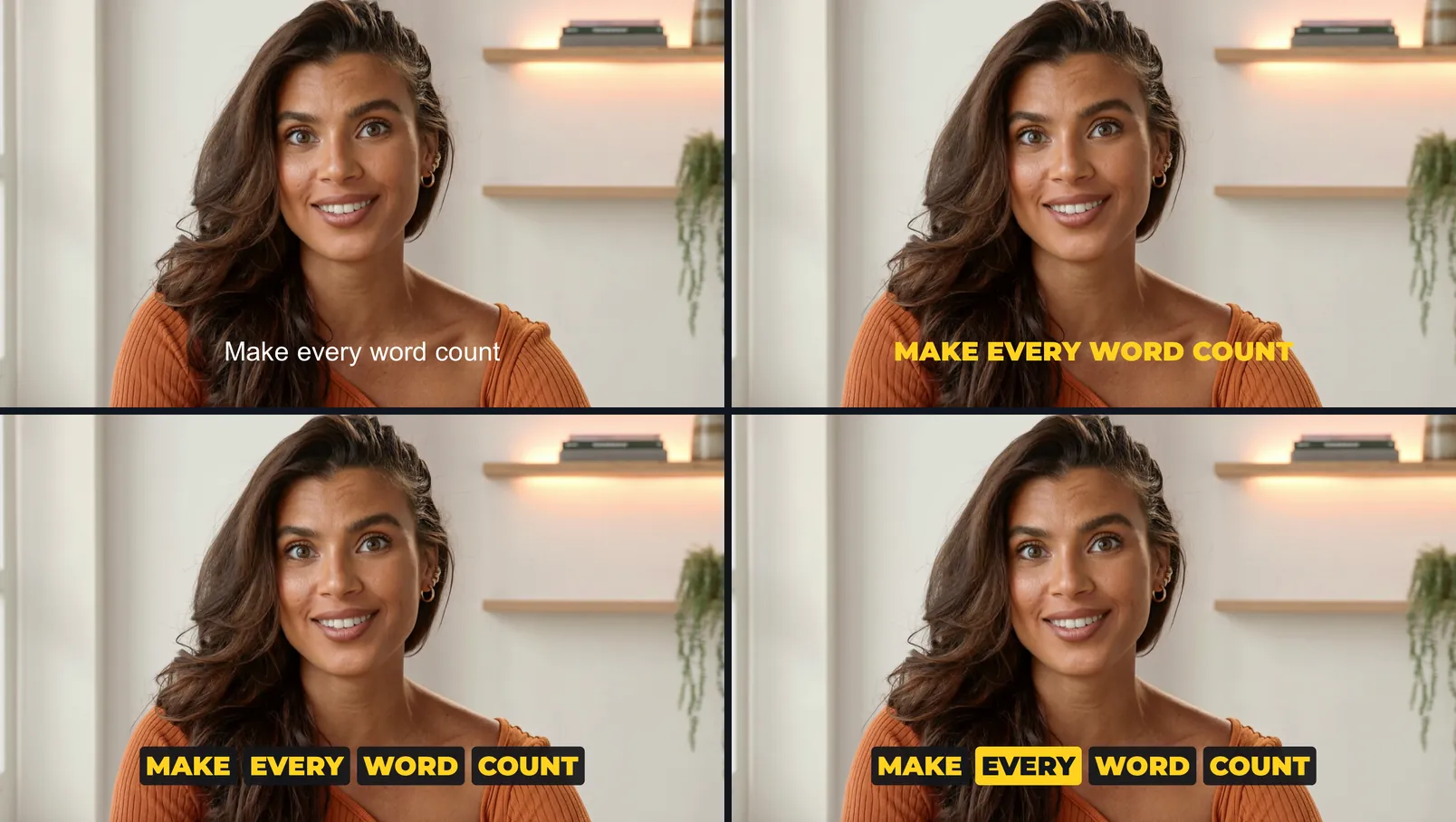
Caption fonts, colours and outlines
In Style, sections open one at a time and show a summary when they're closed. These shape how the words look:
- Font: any font installed on your Mac, or Random font for each word. Set the Letter case, a solid or gradient colour, alternating colours for each word or line and, in 2D, a glitter or grunge texture.
- Colours: every colour on the caption in one list, named for what it paints, such as Text, Box or Shadow. Colours that match share one row, so one change recolours them all.
- Box & Outline: a Box behind the whole caption, each line or each word, filled solid, blurred or with glass, with rounded corners or torn paper edges. Then outline the letters, or show the outline on its own.
Layout, position and angle
- Layout: Classic lines, with your own words per line and spacing; Word Stack, with 30 styles from stacked type to marker highlighters; or Line Art, from outlined letters to calligraphy that writes each word on as it's said.
- Position & Size: drag the caption in the viewer, or set where it sits, its size and its angle, down to tilting each word or jumbling the letters.
Shadows, glow and echoes that make captions pop
Shadow & Glow puts a shadow under the words or under the box, and a glow round the words. Its Echo stack adds coloured copies behind each word for a layered, poster look. To keep the words clear on busy video, Change the video behind in Box & Outline blurs or tints the video just behind the caption.
Animated captions: entrances, the spoken word and while on screen
The Animation tab follows a caption's life, and you can mix effects in each part:
- Quick start sets up a whole entrance and exit in one click, such as Typewriter, Bounce or Slam, for you to change from there.
- Entrance: show the words with the caption, as they're said or one at a time, with effects such as Fade, Slide, Pop, Bounce, Wipe or Typewriter, for the whole caption, each line, each word or each letter.
- Spoken Word: how the word being said stands out: a colour, a box, an underline, bigger, glowing, shaking or waving, and more. Many can stay on words once they've been said.
- Emphasis: the words the voice stresses, or the words that carry the meaning, pop, shake or change colour by themselves.
- While on Screen: movement while the caption shows, such as a drift, a rock, a slow zoom or a sheen.
- Exit: how each caption leaves, with the same effects.
Word-by-word, karaoke and TikTok-style captions
- For a few big words at a time, set Words per line in Layout, or set Max words per segment before you transcribe.
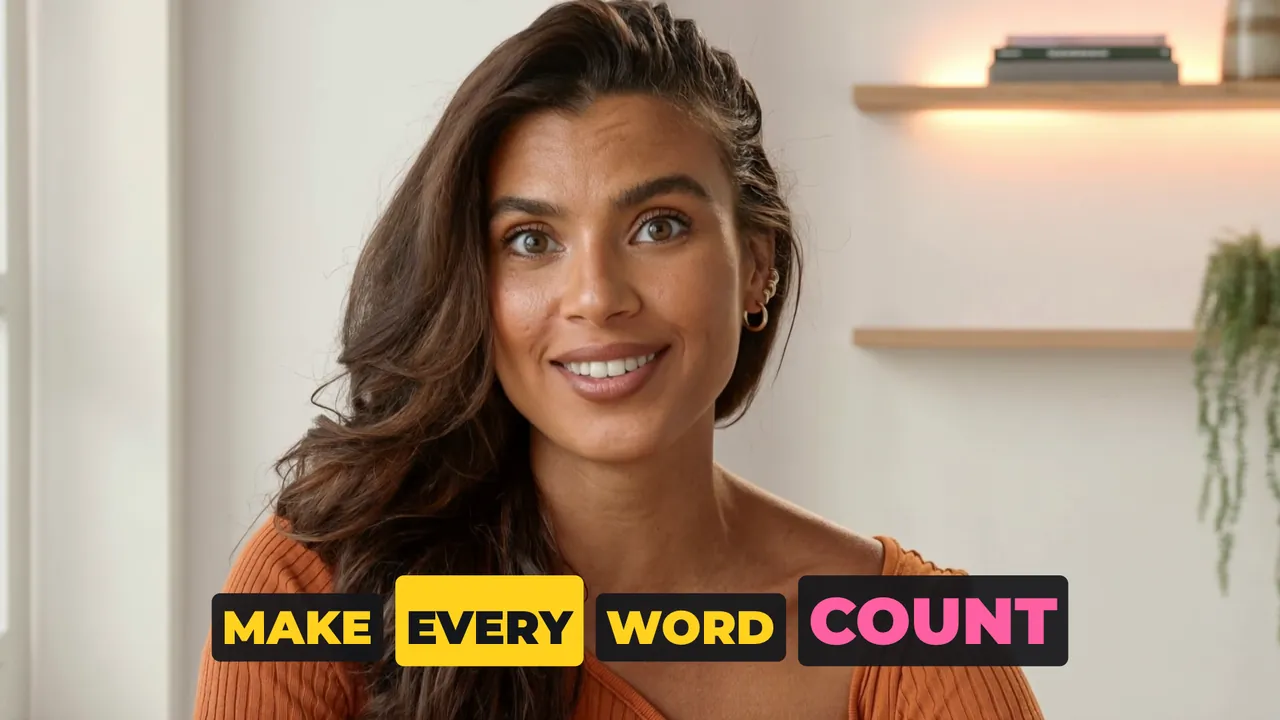
- In Animation, open Spoken Word and choose Colour for a karaoke-style highlight, Box for a box that moves from word to word, or Bigger to pop each word as it's said.
- For one word at a time, choose One at a time in Entrance.
- Turn on Safe Zones to keep the captions clear of the buttons on TikTok, Reels and Shorts.
Make one word or one caption stand out
- One caption: choose Current Segment at the top of the panel, and your changes apply only to the caption under the playhead.
- One word: select it on the timeline or in the Script Editor and choose Word. Give it its own font, size, colour, box, outline, shadow or animation.
- A look to reuse: a style layer is a named style for every caption or word you put on it, such as a second speaker, quotes or key moments. Make one in Layers. With Triggers, words go on a layer by themselves, such as long words or the last word of each caption.
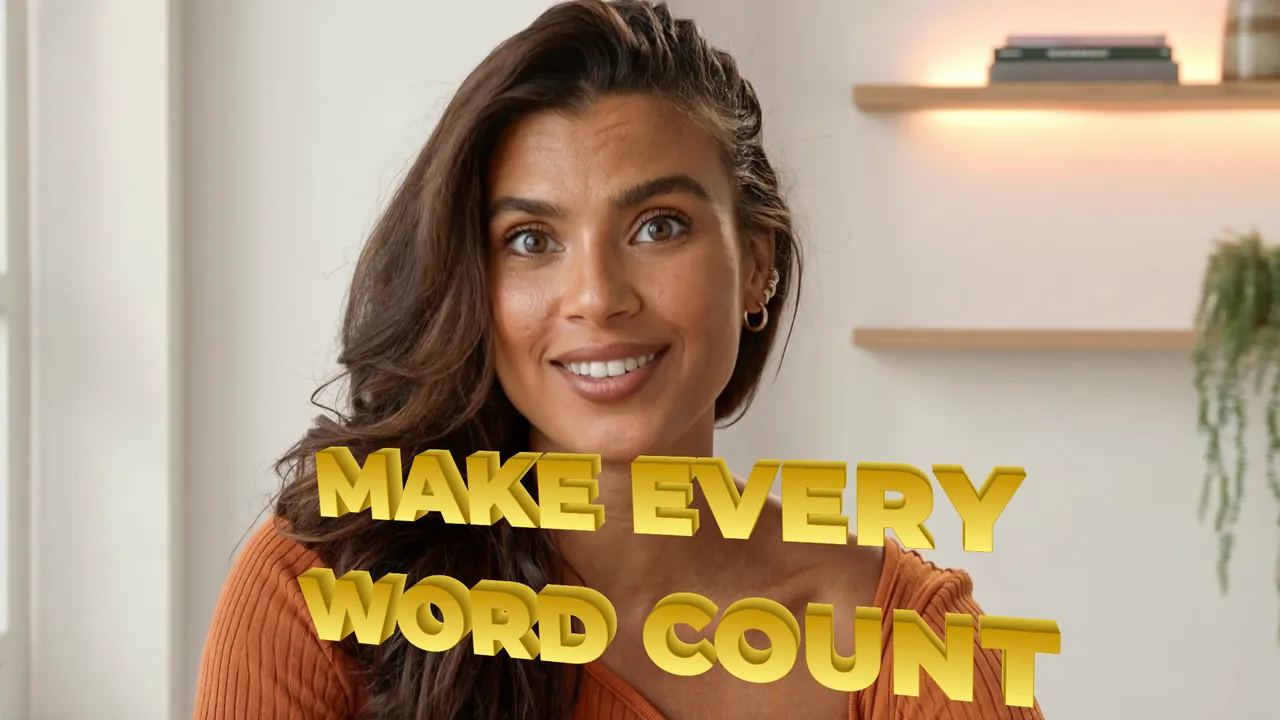
3D captions for video
Switch the Style tab to 3D and your words become solid letters, lit and rendered on your Mac. In 3D Look, set the Depth and Bevel, and choose a material such as metal, pearl, glass, jelly, stone or wood, or an effect such as neon, fire or fur. Colour the front, sides and back separately, and tilt, turn or roll the words in depth.
Glass captions bend the video behind them as it moves: see how to make liquid glass captions.
Need a head start? Begin with a look
You never have to start from a preset, but it can help. Presets has 300+ looks to get you going: click one, then change anything you like in the other tabs until it's yours.
- Search presets finds a look by name, and typing a group's name, such as Karaoke or Highlighters, shows the whole group.
- Right-click a preset and choose Apply Design to take only its look, or Apply Animation to take only its movement, and keep the rest of yours.
Save your look as your own preset
- In Presets, click Save Current Style and type a Preset name.
- It's waiting in My Presets for your next video. Right-click it and choose Export Preset… to share it, and use Import to add presets someone shared with you.
FAQ
- How do I make captions like the ones on TikTok and Reels?
- Keep a few big words at a time near the middle of the screen, and make each word stand out as it's said with Spoken Word in the Animation tab. Turn on Safe Zones to keep clear of the app's buttons. Or start from a look in the Karaoke, Word Boxes or Bold & Punchy groups and make it your own.
- Can captions appear one word at a time?
- Yes. In the Animation tab, open Entrance and choose One at a time. Each word then shows on its own as it's said.
- How do I highlight each word as it's spoken?
- In the Animation tab, open Spoken Word and choose Colour, Box or Underline. Turn on Keep on words already said to leave it on each word once it's been said.
- Which fonts can I use?
- Any font installed on your Mac. Choose it under Font in the Style tab, or turn on Random font for each word for a mixed, poster-style look.
- Can I save my caption style and use it again?
- Yes. Save Current Style in Presets keeps it in My Presets, and you can export it as a file to use on another Mac.
- Can I make 3D captions on a Mac?
- Yes. Switch the Style tab to 3D for solid, lit letters with depth, bevels and materials, rendered on your Mac. 3D captions can be animated like any other.
Viral captions. Made easy.
Transcribe on your Mac, fix any word in seconds and style animated captions, then export a finished video or a transparent overlay for your editor.
Get Easy Caption Pro